Before you start, make sure you have all these items:
Modem
Technicolor TC4400
Wi-Fi Router
Your own router
Power Adapters
2 pcs (Modem + Router)
Coaxial Cable
For wall to modem
Ethernet Cable
Modem to Router
1Connect Coaxial Cable
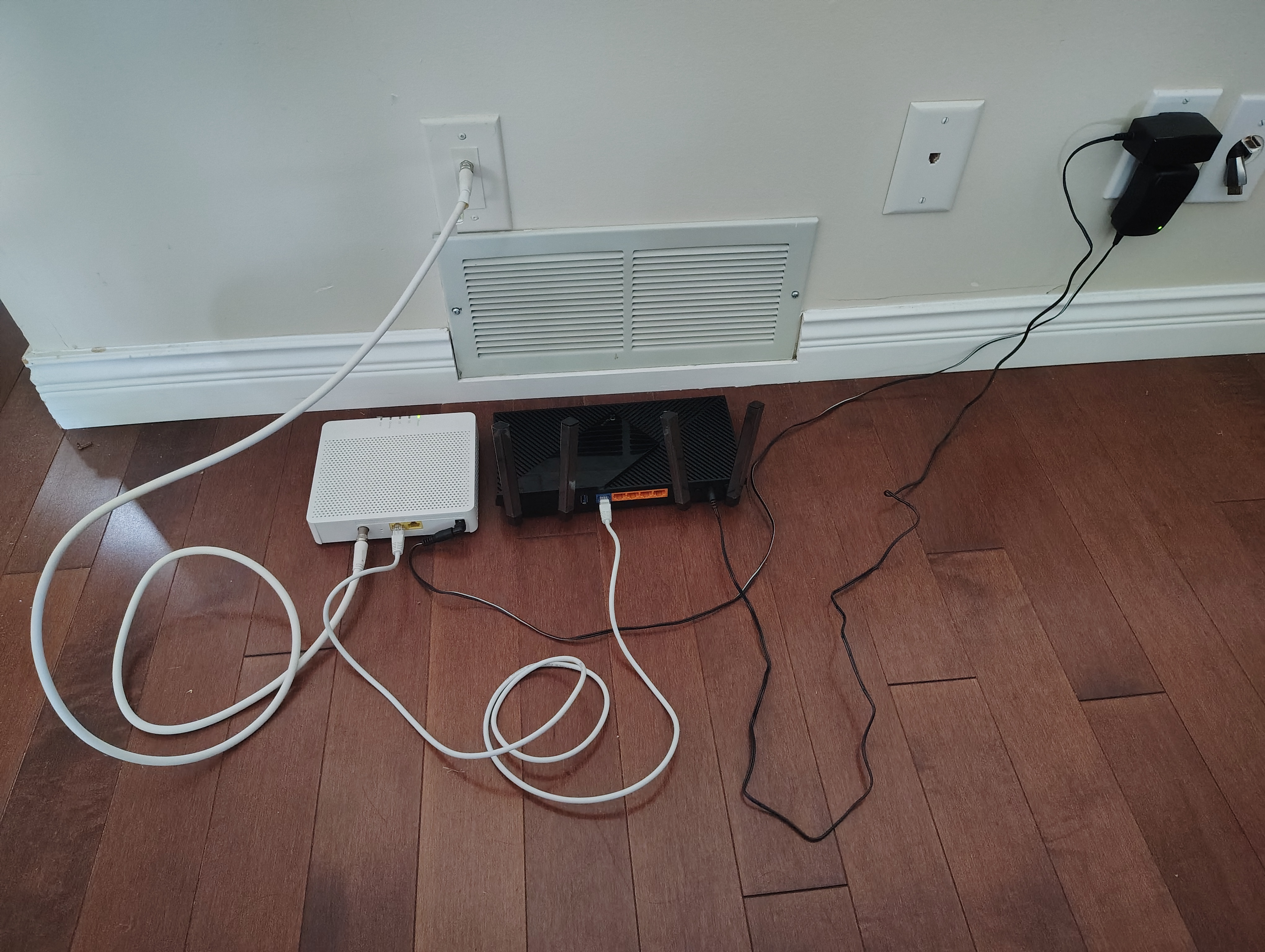
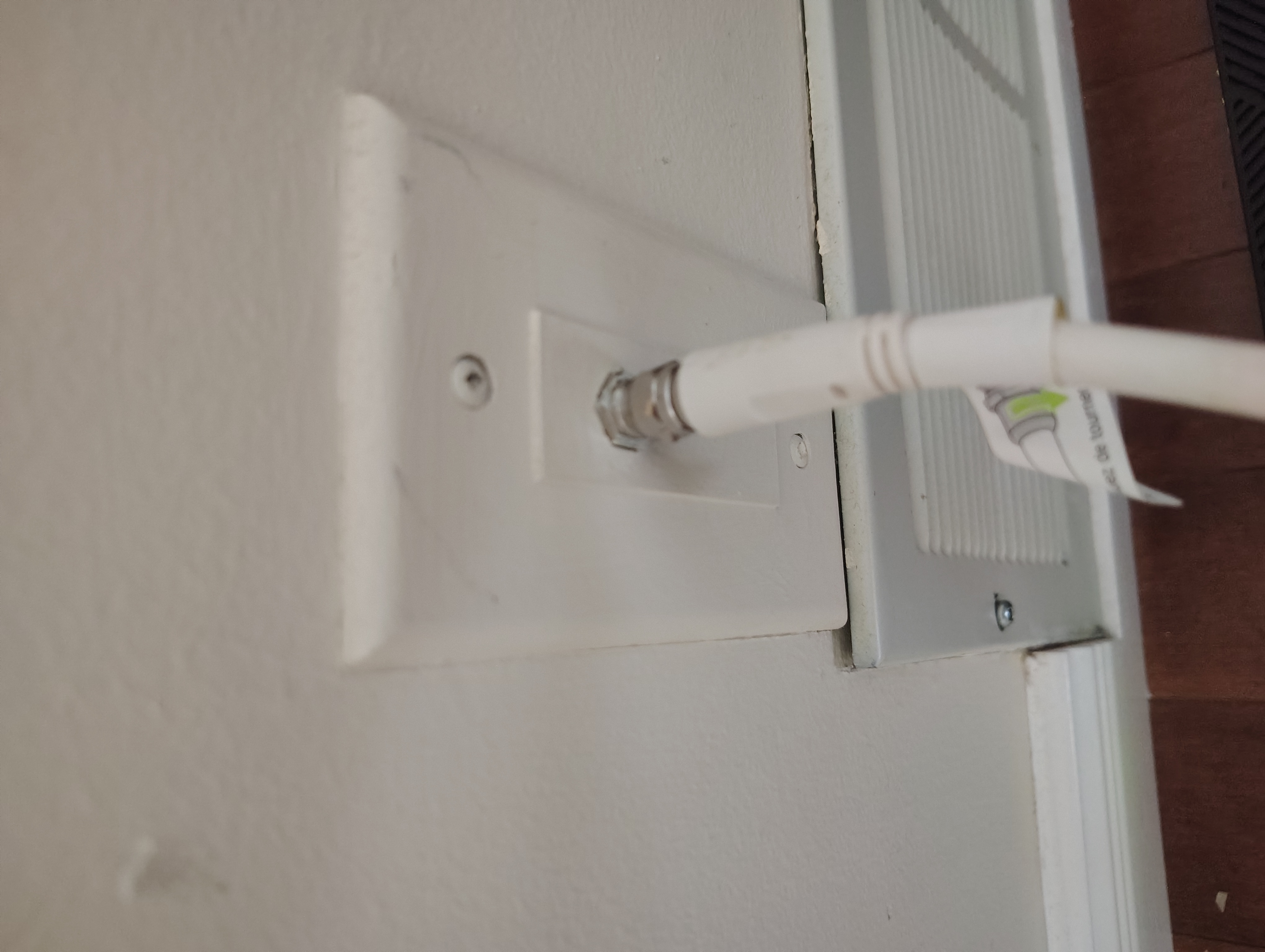
Find the coaxial outlet on your wall. Connect the coaxial cable from the wall outlet to your modem.
Step 1A
Coaxial wall outlet — find this in your home
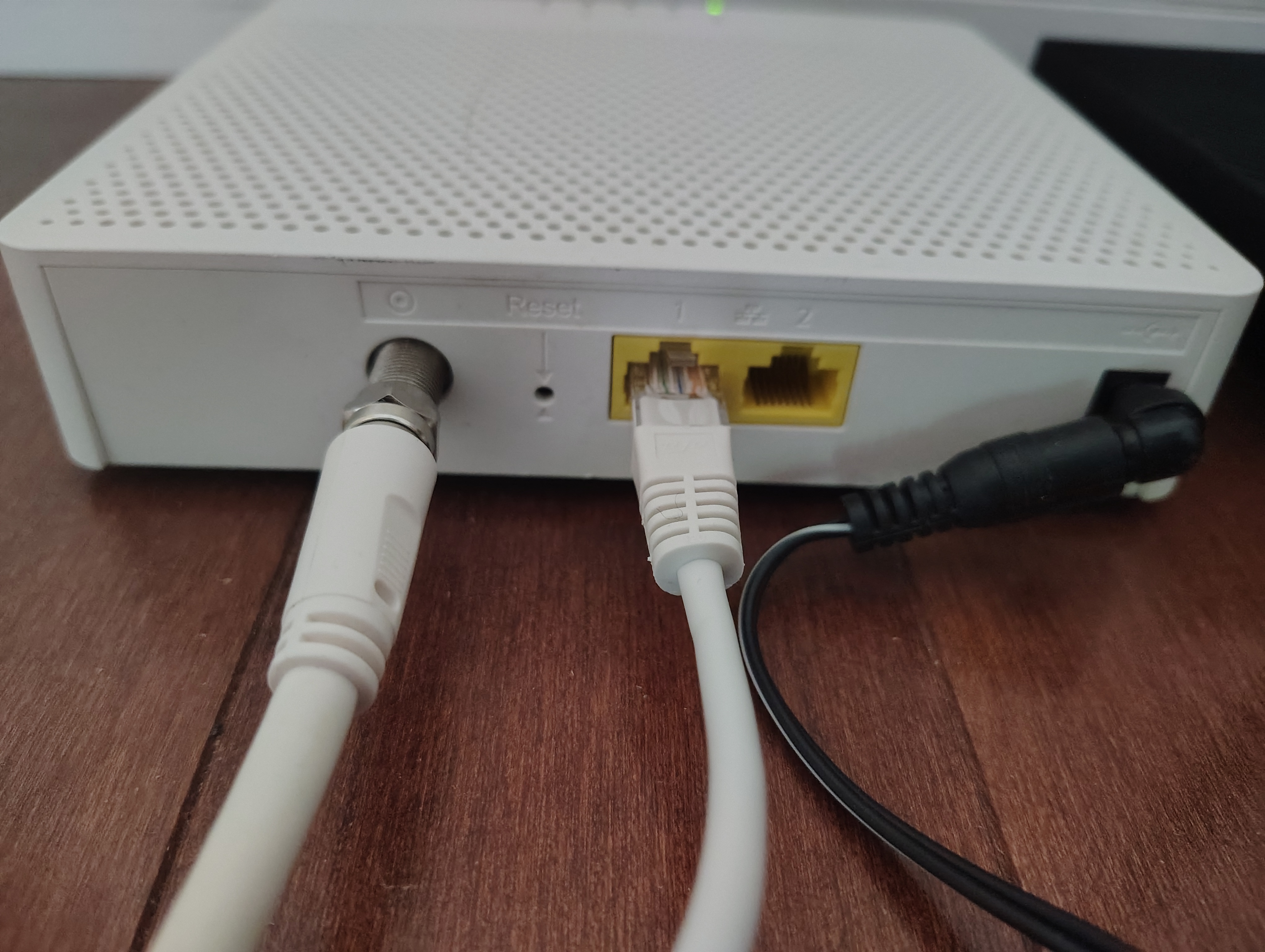
Step 1B
Connect coaxial cable to modem's "CABLE" port
Locate the wall outletLook for a round metal or white panel with a threaded connector — often labeled "Cable" or "TV".
Screw in the coaxial cableAlign the cable connector with the wall outlet, turn clockwise until snug. Connect the other end to the modem's "CABLE" or "RF IN" port.
💡 Pro Tip:Turn clockwise (righty-tighty). If it won't turn further, it's snug enough — don't over-tighten.
2Connect Modem to Router
Use the Ethernet cable to connect your modem to your Wi-Fi router.
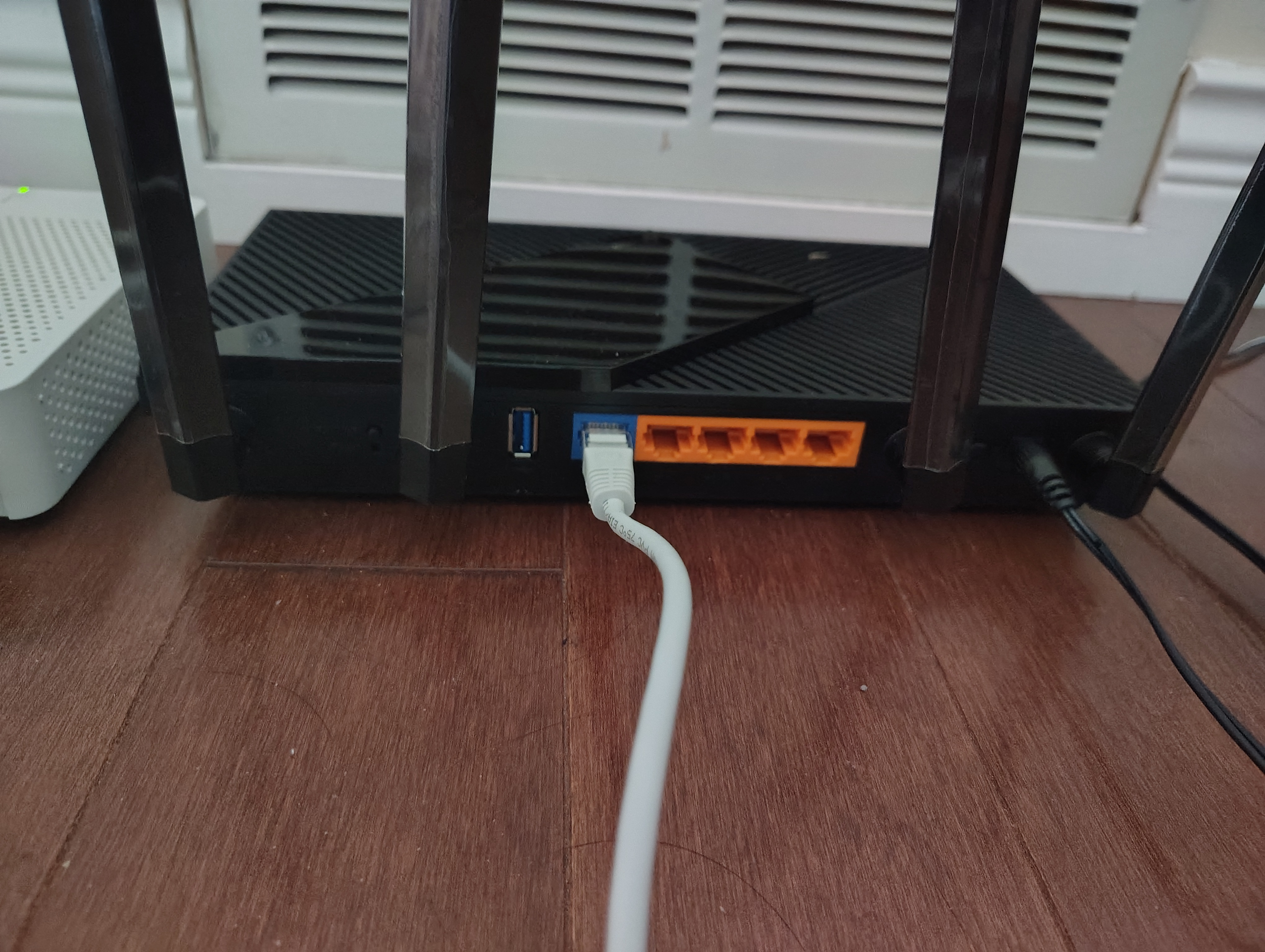
Connect Ethernet from Modem's LAN port → Router's WAN/Internet port
Find the modem's LAN portOn the TC4400, look for the yellow (or black) Ethernet port labeled "LAN" or "Ethernet".
Find the router's WAN portOn your router, look for a port that's a different color or labeled "WAN", "Internet", or "WAN/LAN".
Connect themPlug one end into the modem's LAN port, the other into the router's WAN port. You should hear a "click" when it's fully inserted.
🔑 Key Point:Modem LAN → Router WAN (not Router LAN!). This is the most common mistake.
3Power On
Power on the modem firstPlug in the modem's power adapter. Wait 1-2 minutes for the lights to stabilize (green solid).
Then power on the routerPlug in the router's power adapter. Wait another 1-2 minutes for the router lights to stabilize.
⚠️ Important:Always power on the modem first, then the router. Powering them on in the wrong order may prevent proper synchronization.
4Connect to Wi-Fi
Your network is now ready! Connect your phone or computer to Wi-Fi.
📱 Check the label on your router
Look for "Wi-Fi Name" or "SSID" and "Password" or "Wi-Fi Key" on the bottom or back of your router.
Open Wi-Fi settingsOn your phone, go to Settings → Wi-Fi (or Wireless Networks).
Find your networkLook for the SSID that matches the one on your router's label.
Enter the passwordType in the Password or Wi-Fi Key from the label. Note: it is case-sensitive.
Connected!You should see the Wi-Fi icon appear. You're now online — enjoy your new FlashNet service!
Frequently Asked Questions
❓ My modem lights are off — what should I do?
Check that the power adapter is plugged in securely and the outlet has power. If it still won't turn on, contact support.
❓ I can't find my Wi-Fi network in the list.
Make sure your router is powered on and fully booted. If you still can't find it, try connecting your computer via Ethernet to access the router settings at 192.168.1.1.
❓ I entered the password but it says "incorrect password".
Passwords are case-sensitive. Double-check for uppercase/lowercase letters, and watch out for "0" vs "O" and "1" vs "I". Restart your router if you get locked out.
❓ Connected to Wi-Fi but no internet access.
Check that the coaxial cable is securely connected at both ends, and the Ethernet cable between modem and router is firmly plugged in. Try restarting both devices (modem first, wait 2 minutes, then router).
Need help? We're here!
If you run into any issues during installation, contact us anytime.